
In this walkthrough we will go from zero to a working automated workflow: one that opens Notepad, types a message, saves the file, and verifies the result.
Prerequisites
- Windows 10 or Windows 11 (64-bit)
- Claude Code or Claude Desktop (or any MCP-capable client)
- PowerShell
Step 1 — Install
One PowerShell command installs everything: the workflow engine, the MCP server, and the workflow library.
PowerShell -ExecutionPolicy Bypass -Command "iwr https://raw.githubusercontent.com/visioncortex/ui-automata/refs/heads/main/install/install-windows.ps1 | iex"
The installer places binaries in C:\Users\<you>\.ui-automata\ and adds that directory to your PATH. Open a new PowerShell window and run the self-test to confirm everything is in place:
automata-agent --self-test
Then run the bundled Notepad demo to confirm the workflow engine works end-to-end:
Windows 11
ui-workflow $env:USERPROFILE\.ui-automata\workflows\win11\notepad\notepad_demo.yml
Windows 10
ui-workflow $env:USERPROFILE\.ui-automata\workflows\win10\notepad\notepad_demo.yml
You should see Notepad open, some text typed, and the workflow complete successfully.
Step 2 — Connect MCP
Claude Code
Launch the MCP server from PowerShell (keep this window open while you work):
automata-agent
It scans ports 3001–4000 for a free one and prints a ready-to-paste config block:
automata-agent started
host : 127.0.0.1
port : 3001

MCP config (paste into .mcp.json, keep this window open):
{
  "mcpServers": {
    "ui-automata": {
      "type": "http",
      "url": "http://127.0.0.1:3001/mcp"
    }
  }
}
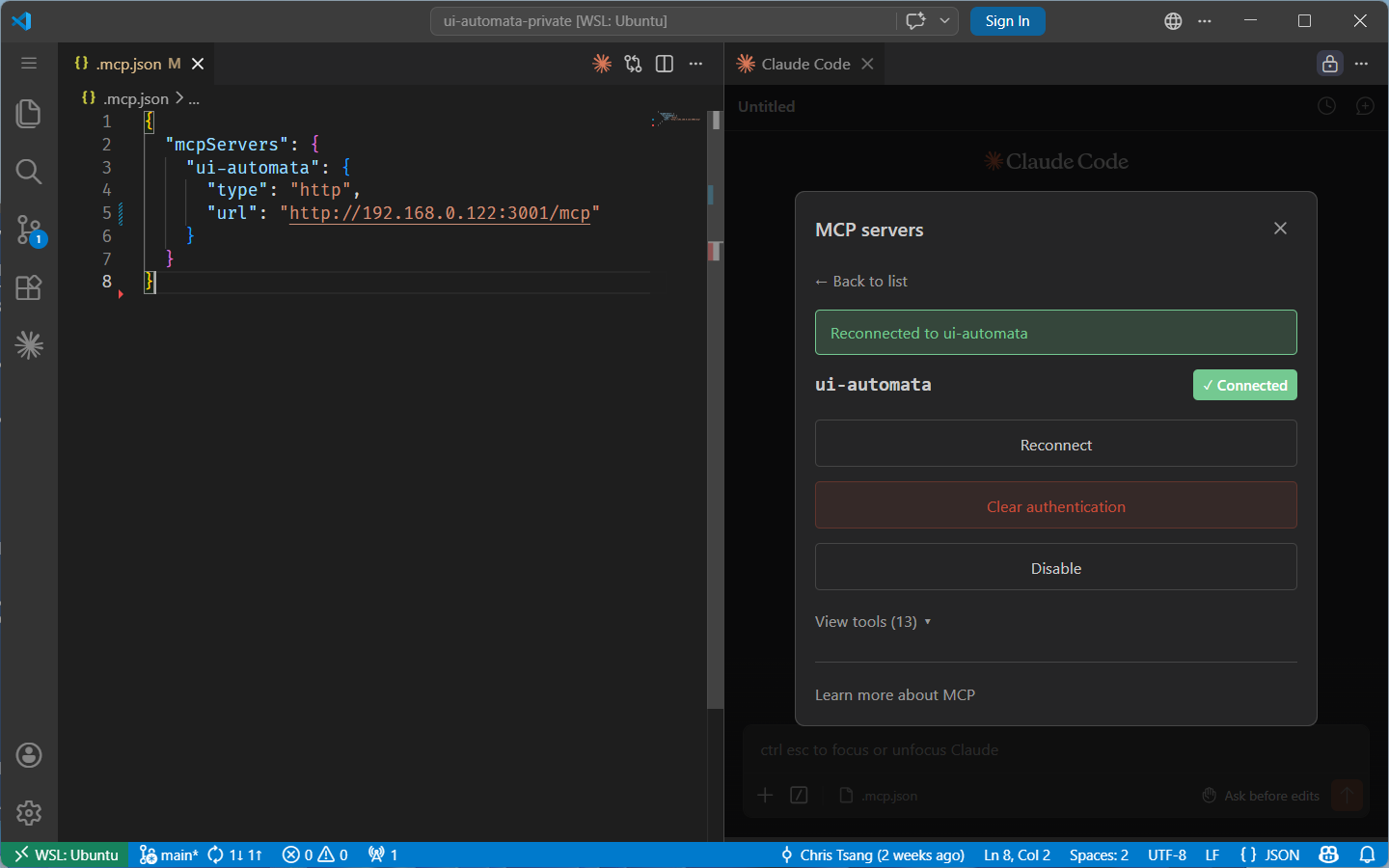
Copy the config block from your terminal (the port may differ) and paste it into your .mcp.json. Then run /mcp in Claude Code and click Reconnect next to the ui-automata server. If the tools still don't appear, run Developer: Reload Window from the VS Code command palette (Ctrl+Shift+P) and reconnect again.
Claude Desktop
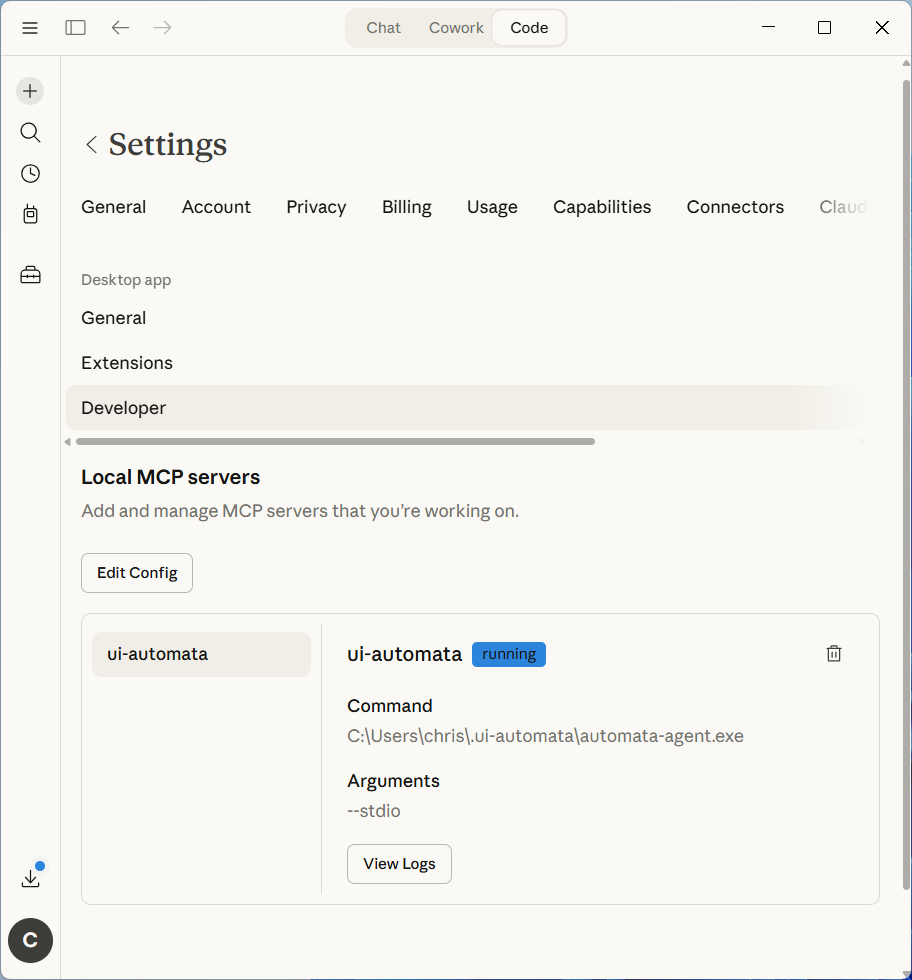
Claude Desktop uses stdio instead of HTTP. Add the following to your claude_desktop_config.json, replacing <you> with your Windows username:
{
  "mcpServers": {
    "ui-automata": {
      "command": "C:\\Users\\<you>\\.ui-automata\\automata-agent.exe",
      "args": ["--stdio"]
    }
  }
}
Claude Desktop launches automata-agent automatically. After editing the config, fully quit Claude (right-click the tray icon and choose Quit — closing the window is not enough) and relaunch it. You should see ui-automata listed under Settings → Connectors.
Verify the connection
Ask Claude: "list the ui-automata tools available to you". It should respond with the full tool list.
Step 3 — Explore the UI
Before writing a workflow, you need to know the element tree of the application you want to automate. UI Automata ships ui-inspector for this.
Run it from PowerShell:
ui-inspector
Move the mouse over any element in any window. The inspector highlights the element under the cursor and prints its full ancestor chain to the terminal:
[desktop] "Desktop 1" class=#32768 id=
   └─ [window] "Untitled - Notepad" class=Notepad id=
      └─ [pane] "" class=NotepadTextBox id=
         └─ [document] "Text editor" class=RichEditD2DPT id= value= enabled=true rect=(0,0,400,200)
Every line shows the element's role, name, class, AutomationId, value, and bounding rect — exactly what you need to write a selector. Press Ctrl-C to exit.
To find window handles and process names, use list-windows:
list-windows
To test a selector before committing it to a workflow, ask Claude to run desktop find_elements against the window. It will return every match with its role, name, bounds, and full ancestor chain.
You can also dump the full UIA element tree for a window by its HWND.
element-tree 0x1234ab
Step 4 — Your First Workflow
With the element tree in hand, writing the workflow is straightforward. Here is a minimal example that opens Notepad, types a line, and saves the file:
Windows 11
# yaml-language-server: $schema=https://raw.githubusercontent.com/visioncortex/ui-automata/main/workflow-schema.json
name: notepad_hello
description: Open Notepad, type a message, and save the file.

defaults:
  timeout: 5s

launch:
  exe: notepad.exe
  wait: new_window

anchors:
  notepad:
    type: Root
    process: Notepad
    selector: "[name~=Notepad]"

  editor:
    type: Stable
    parent: notepad
    selector: ">> [role=document][name='Text editor']"

  saveas_dialog:
    type: Ephemeral
    parent: notepad
    selector: "> [role=dialog][name^=Save]"

phases:

  - name: type_text
    mount: [notepad, editor]  # mounted before steps run
    steps:
      - intent: type text into editor
        action:
          type: TypeText
          scope: editor
          selector: "*"
          text: "Hello Automata"
        expect:
          type: ElementHasText
          scope: editor
          selector: "*"
          pattern:
            contains: "Hello Automata"

  - name: save_file
    mount: [saveas_dialog]
    unmount: [saveas_dialog]
    steps:
      - intent: activate keyboard shortcut for Save As
        action:
          type: PressKey
          scope: notepad
          selector: "*"
          key: "ctrl+shift+s"
        expect:
          type: DialogPresent
          scope: notepad

      - intent: type filename in Save As dialog
        action:
          type: SetValue
          scope: saveas_dialog
          selector: ">> [role=edit][name='File name:']"
          value: "hello-world"
        expect:
          type: ElementHasText
          scope: saveas_dialog
          selector: ">> [role=edit][name='File name:']"
          pattern:
            contains: "hello-world"

      - intent: click Save button
        action:
          type: Invoke
          scope: saveas_dialog
          selector: ">> [role=button][name=Save]"
        expect:
          type: DialogAbsent
          scope: notepad
Windows 10
# yaml-language-server: $schema=https://raw.githubusercontent.com/visioncortex/ui-automata/main/workflow-schema.json
name: notepad_hello
description: Open Notepad, type a message, and save the file.

defaults:
  timeout: 5s

launch:
  exe: notepad.exe
  wait: new_pid

anchors:
  notepad:
    type: Root
    selector: "[name~=Notepad]"

  editor:
    type: Stable
    parent: notepad
    selector: ">> [role=edit][name='Text Editor']"

  saveas_dialog:
    type: Ephemeral
    parent: notepad
    selector: ">> [role=dialog][name='Save As']"

phases:

  - name: type_text
    mount: [notepad, editor]
    steps:
      - intent: type text into editor
        action:
          type: TypeText
          scope: editor
          selector: "*"
          text: "Hello Automata"
        expect:
          type: ElementHasText
          scope: editor
          selector: "*"
          pattern:
            contains: "Hello Automata"

  - name: save_file
    mount: [saveas_dialog]
    unmount: [saveas_dialog]
    steps:
      - intent: activate keyboard shortcut for Save As
        action:
          type: PressKey
          scope: notepad
          selector: "*"
          key: "ctrl+shift+s"
        expect:
          type: DialogPresent
          scope: notepad

      - intent: type filename in Save As dialog
        action:
          type: SetValue
          scope: saveas_dialog
          selector: ">> [role=combo box][name='File name:'] > [role=edit]"
          value: "hello-world"
        expect:
          type: ElementHasText
          scope: saveas_dialog
          selector: ">> [role=combo box][name='File name:'] > [role=edit]"
          pattern:
            contains: "hello-world"

      - intent: click Save button
        action:
          type: Invoke
          scope: saveas_dialog
          selector: ">> [role=button][name=Save]"
        expect:
          type: DialogAbsent
          scope: notepad
Save this as notepad_hello.yml and run it:
ui-workflow notepad_hello.yml
Reading the logs
After each run, a detailed structured log is saved to:
$env:USERPROFILE\.ui-automata\logs\notepad_hello\20260403T152954.log
[2026-04-03T14:29:54.074Z] [INFO] log → C:\Users\chris\.ui-automata\logs\notepad_hello\20260403T152954.log
[2026-04-03T14:29:54.568Z] [INFO] launched 'notepad.exe' pid=20828
[2026-04-03T14:29:54.568Z] [INFO] launch: waiting for notepad.exe window (strategy=NewWindow, timeout=5s)
[2026-04-03T14:29:55.450Z] [INFO] phase: type_text
[2026-04-03T14:29:55.904Z] [DEBUG] resolved anchor 'notepad':

[2026-04-03T14:29:59.756Z] [DEBUG] action → Ok
[2026-04-03T14:29:59.797Z] [DEBUG] poll: ElementHasText(saveas_dialog:[role=edit][name=File name:]) → true
[2026-04-03T14:29:59.797Z] [INFO] step 2/3: ok
[2026-04-03T14:29:59.797Z] [INFO] step 3/3 'click Save button'
[2026-04-03T14:29:59.797Z] [DEBUG] action: Click(saveas_dialog:[role=button][name=Save])
[2026-04-03T14:30:00.917Z] [DEBUG] action → Ok
[2026-04-03T14:30:01.459Z] [DEBUG] poll: DialogAbsent(notepad) → true
[2026-04-03T14:30:01.459Z] [INFO] step 3/3: ok
[2026-04-03T14:30:01.460Z] [DEBUG] unmounted node 3 for anchor 'saveas_dialog'
[2026-04-03T14:30:01.460Z] [DEBUG] cleanup depth 0: removed node 1 for key 'notepad'
[2026-04-03T14:30:01.460Z] [DEBUG] cleanup depth 0: removed node 2 for key 'editor'
[2026-04-03T14:30:01.460Z] [INFO] outputs: {}
[2026-04-03T14:30:01.460Z] [INFO] completed successfully
Open it to inspect exactly what happened on every step — actions taken, conditions evaluated, recovery handlers triggered, and the final UI state at the point of failure.
Before Starting a Task with Claude
Ask Claude to read the library context before starting any automation task:
Read the CLAUDE.md and AGENT.md from the ui-automata resource list before we start.
Where to Go Next
- Core Concepts — how the engine works, anchors, selectors, conditions, and recovery
- Writing Workflows — hands-on guides for common authoring tasks
- Workflow Library — ready-to-use workflows for Notepad, Explorer, Windows Settings, Word, and more