Connecting MCP
automata-agent is an MCP server that exposes all ui-automata tools to Claude. It ships with the installer and supports two connection modes depending on which Claude client you use.
Claude Code
Launch automata-agent by double-clicking it in C:\Users\<you>\.ui-automata\, or from PowerShell:
automata-agent
The agent scans ports 3001–4000 for a free one, then prints the complete ready-to-paste MCP config to the terminal:
automata-agent started
host : 127.0.0.1
port : 3001

MCP config (paste into .mcp.json, keep this window open):
{
  "mcpServers": {
    "ui-automata": {
      "type": "http",
      "url": "http://127.0.0.1:3001/mcp"
    }
  }
}
Copy the config block from the terminal (not from this page — the port may differ) and paste it into your .mcp.json. Keep the terminal window open while you work.
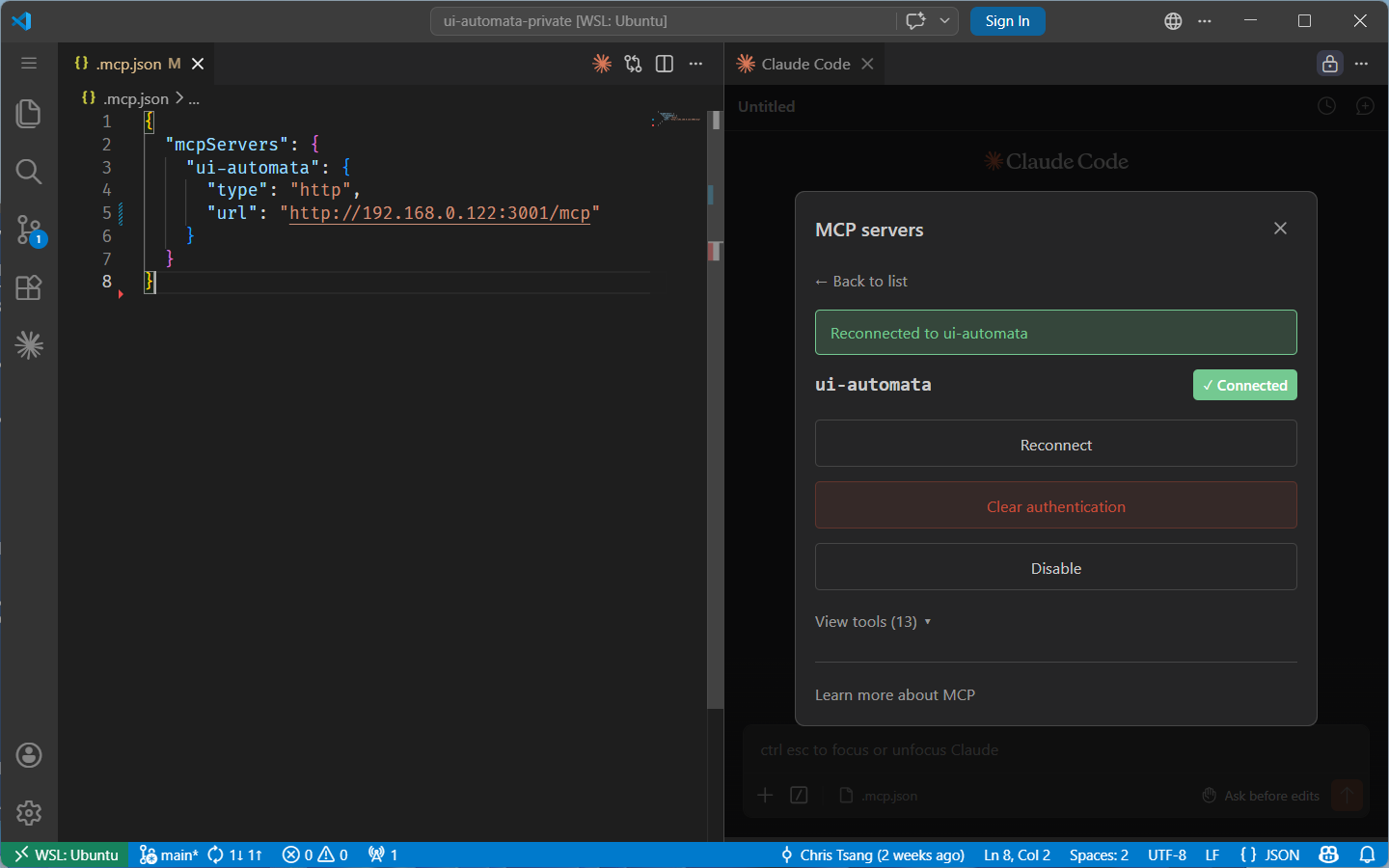
After updating .mcp.json, run /mcp in Claude Code and click Reconnect next to the ui-automata server. If the tools still don't appear, run Developer: Reload Window from the VS Code command palette (Ctrl+Shift+P) and reconnect again.
Inside WSL
WSL cannot reach 127.0.0.1 on the Windows host — that loopback address is local to Windows only. The recommended approach is to bind automata-agent to the WSL virtual adapter IP. Windows creates a private virtual network exclusively for WSL (shown as vEthernet (WSL) in ipconfig). It is unreachable from the rest of your LAN, so no firewall rule is needed.
Step 1 — find the WSL virtual adapter IP
From PowerShell, run ipconfig and look for the vEthernet (WSL) adapter:
ipconfig
Ethernet adapter vEthernet (WSL):
   IPv4 Address. . . . . . . . . . . : 172.24.128.1
From WSL you can get the same address with:
ip route show default | awk '{print $3}'
Step 2 — bind automata-agent to that IP
Pass the address via --host:
automata-agent --host 172.24.128.1
The agent will print an MCP config block using that IP.
Step 3 — paste the config into WSL
Copy the printed config block and paste it into .mcp.json inside your WSL home directory:
{
  "mcpServers": {
    "ui-automata": {
      "type": "http",
      "url": "http://172.24.128.1:3001/mcp"
    }
  }
}
The WSL virtual adapter IP is reassigned each time WSL restarts. If the connection stops working, re-run ip route show default in WSL to get the new IP, restart automata-agent --host <new-ip>, and update .mcp.json.
Claude Desktop
Claude Desktop uses stdio instead of HTTP. Add the following to your claude_desktop_config.json, replacing <you> with your Windows username:
{
  "mcpServers": {
    "ui-automata": {
      "command": "C:\\Users\\<you>\\.ui-automata\\automata-agent.exe",
      "args": ["--stdio"]
    }
  }
}
Claude Desktop launches automata-agent automatically — you do not need to start it manually.
Claude Desktop must be fully quit before it will pick up the new config. Closing the window is not enough — Claude minimises to the taskbar. Right-click the Claude icon in the system tray and choose Quit, then relaunch it.
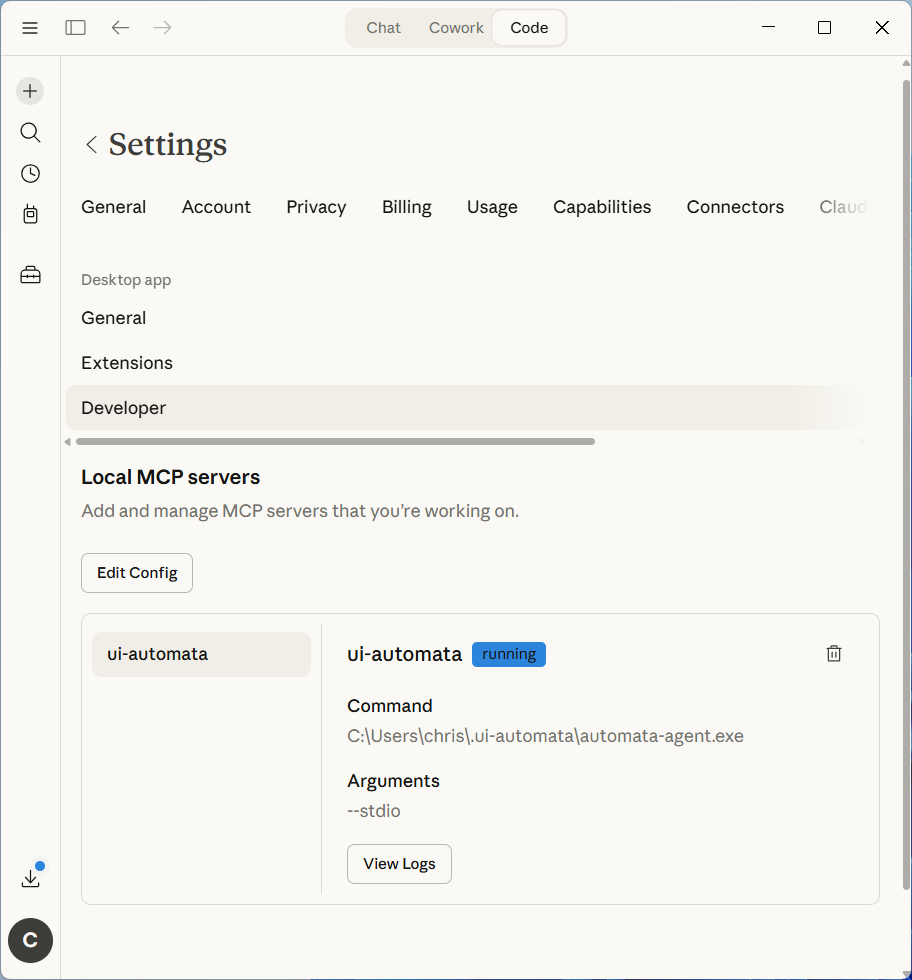
You should be able to find ui-automata listed under Settings → Connectors in Claude Desktop.
Verify
Then ask: "list the ui-automata tools available to you". It should respond with the full tool list. If it does, the connection is working.
Which Model to Use
Sonnet 4.6 is fast enough for interactive use: exploring a UI, running one-off actions, checking workflow status.
Opus 4.6 reasons better about complex workflows and is the right choice when authoring multi-phase automations or debugging unexpected behaviour.
Context Initialization
Ask Claude to read CLAUDE.md and the relevant workflows from the library before starting a task. This gives it the context it needs to work effectively without you having to explain the project each time.
In Claude Code (HTTP mode), the workflow library is exposed as MCP resources — Claude can browse and fetch them directly:
"Read the CLAUDE.md and AGENT.md from the ui-automata resource list before we start."
In Claude Desktop (stdio mode), use the built-in resources tool to fetch them:
"Use the resources tool to read CLAUDE.md and AGENT.md from ui-automata before we start."
Either way, a Claude that has read the library writes better workflows faster and makes fewer avoidable mistakes.